MassDash Installation on MacOS Big Sur
This guide will help you install MassDash on MacOS Big Sur.
Note
This tutorial was created using a clean installation of MacOS Big Sur using a virtual machine. The virtual machine was created using Oracle VM VirtualBox, with 32Gb of RAM, 8 processors, and 64Gb of storage. The virtual machine was created using the macOS Big Sur iso file from The Internet Archive.
Prerequisites
It is recommended to use Anaconda to manage Python environments and packages. You can download Anaconda from here. You can find documentation for installing Anaconda on MacOS here.
Installation
Launch a terminal and create a new conda environment using the following command:
conda create -n massdash python=3.9 -y
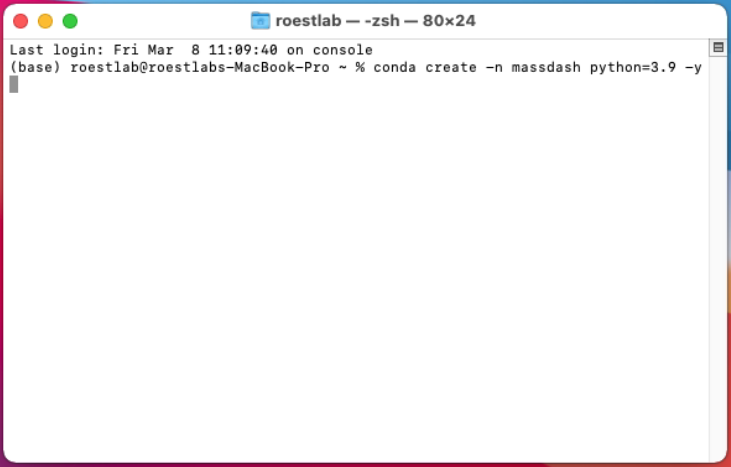
Activate the new conda environment using the following command:
conda activate massdash

Install massdash using the following command:
pip install massdash

Usage
Help
You can get help on how to use MassDash’s GUI by running the following command in the terminal:
massdash gui --help

Launch MassDash GUI
You can launch MassDash’s GUI by running the following command in the terminal:
massdash gui
A browser window will open with the MassDash GUI. If the browser window does not open, you can navigate to the following URL in your browser using the local url provided in the Anaconda CMD.exe output, by default it should be http://localhost:8501/, unless the port is changed.
Note
It is recommended to use Google Chrome or Firefox to open the MassDash GUI instead of Safari.
Note
MassDash warns you that onnxruntime, torch, and torchmeets are not installed. You can ignore this warning if you do not plan to use the MassDash’s peak picking conformer model.

Once the browser window opens, you can start using MassDash’s GUI to visualize your mass spectrometry data. For more information on the GUI, please refer to the MassDash GUI Documentation.

